
Service Alerts Agency
Post GTFS-Realtime Service Alerts — detours, delays, stop closures, reduced service — to a live feed that Google Maps, Apple Maps, and transit apps consume. Alerts are decoupled from your schedule: posting or expiring one takes effect immediately, with no republish.
What it is
A GTFS feed is your schedule — the service you intend to run. Real operations diverge: a bridge closes, a stop moves for construction, snow cancels a route. GTFS-Realtime Service Alerts are the standard way to tell riders' apps about those divergences, layered on top of the static feed. GTFS·X gives you a place to write them and a live URL to serve them — without standing up a real-time server.
This covers the Service Alerts entity of GTFS-Realtime only. Trip Updates (live arrival predictions) and Vehicle Positions require an AVL feed off your buses and are out of scope.
When to use it
- A detour or stop closure that lasts days or weeks but doesn't warrant reissuing the schedule.
- A planned reduction (holiday service, weather) you want to flag in advance with an active window.
- An elevator outage or accessibility note at a specific station.
- Any rider-facing notice you'd otherwise only post on your website — here it reaches the apps riders actually check.
How to author an alert
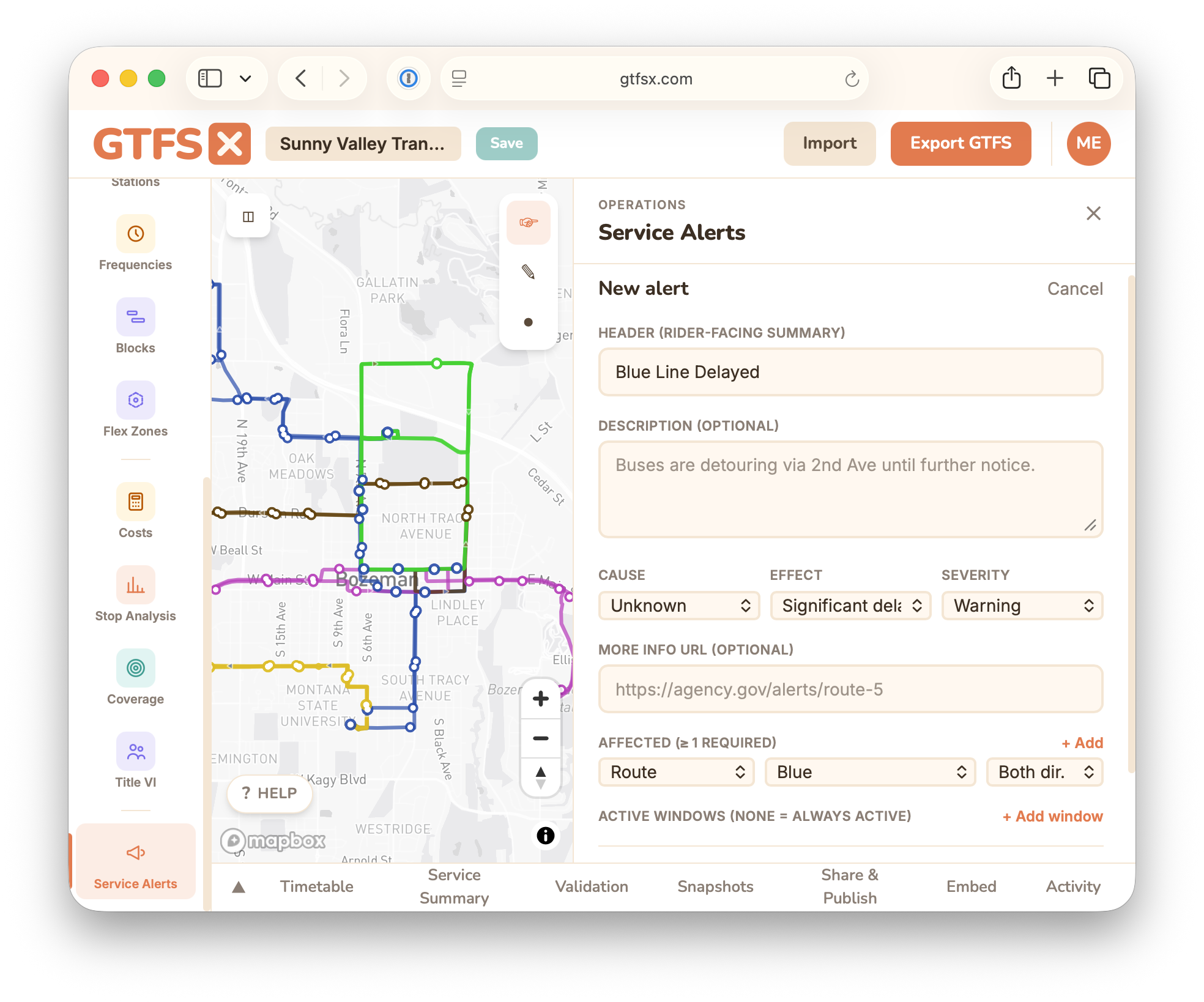
- Open a feed and click Service Alerts under Operations in the left rail, then + New alert.
- Write a Header — the short rider-facing summary (e.g. "Route 5 detour around Main St") — and an optional longer Description.
- Set Cause, Effect, and Severity from the GTFS-Realtime enumerations (e.g. Construction → Detour → Warning). Add a More info URL if you have a page with details.
- Choose the affected entities — the whole feed (agency-wide), specific routes, or specific stops, optionally by direction. The pickers are populated from the live feed, so you select real routes and stops. At least one is required.
- Optionally add one or more active windows (start/end). With no window, the alert is active as soon as you activate it and until you deactivate it.
- Save, preview, then activate. The alert appears on your public alerts feed within the cache window; deactivating or expiring it removes it — all without touching your schedule.
How it's served
Alerts publish to two public URLs alongside your feed, for whichever format a consumer prefers:
feeds.gtfsx.com/<slug>/alerts.pb— the binary GTFS-RealtimeFeedMessage(application/x-protobuf), which is what Google, Apple, and most trip planners ingest.feeds.gtfsx.com/<slug>/alerts.json— the same data as JSON, handy for debugging or a custom website widget.
Both serve a v2.0 FULL_DATASET containing only currently-active alerts (by status and active window), with a short max-age=30 cache. Authoring is gated to your team; the served feeds are open, because their consumers are trip planners. When you start authoring alerts, GTFS·X automatically advertises the alerts.pb URL in your feed's feed_info.json so catalogs and consumers can discover it.
Good to know
- Decoupled from publish. Alerts live as their own records, not inside the schedule ZIP — so an alert never forces a feed republish, and a republish never disturbs your alerts.
- Validation warns, doesn't block. An alert needs at least one affected entity, a non-empty header, and
end > starton any window. If you reference a route or stop that isn't in the published feed, you get a warning, not a hard stop. - One alerts feed per project. If you already register an external GTFS-RT alerts URL, GTFS·X won't also publish its own — you'll be asked to choose, so consumers never see two.
- Single language today. Alert text is published as one translation; multi-language alerts are on the roadmap.
See also
- Hosted publishing — the stable feed URL alerts attach to.
- How to publish a GTFS feed — registering your feed with the catalogs that also read alerts.
- Rider mini-site — where an active alert shows as a rider-facing banner.