
Hosted publishing Pro
Publish your feed to a stable URL at feeds.gtfsx.com/<slug>/gtfs.zip. That URL is what you hand to Google Transit, the Mobility Database, trip planners, and your own riders — and it keeps working when you re-publish.
What it is
"Hosted publishing" means GTFS·X stores your feed and serves it from a fixed URL that doesn't change between versions. Every time you publish, the canonical URL updates atomically: trip planners get the new schedule on their next fetch without you mailing anyone a new link.
For each published project you get four things:
- Canonical feed URL —
https://feeds.gtfsx.com/<slug>/gtfs.zip. Stable, public, ETag- and Last-Modified-aware so well-behaved consumers don't re-download unchanged feeds. - Sidecar metadata —
https://feeds.gtfsx.com/<slug>/feed_info.jsonwith publisher name, service dates, and last-modified timestamp. Useful for catalog ingestors and monitoring scripts. - Rider-facing mini-site —
https://feeds.gtfsx.com/<slug>/renders an auto-generated landing page with a system map, today's service, and a route list. See Rider mini-site. - Embed widgets — iframe-friendly URLs for the system map and per-route schedules, so the same data appears on your agency's main website. See Embed widgets.
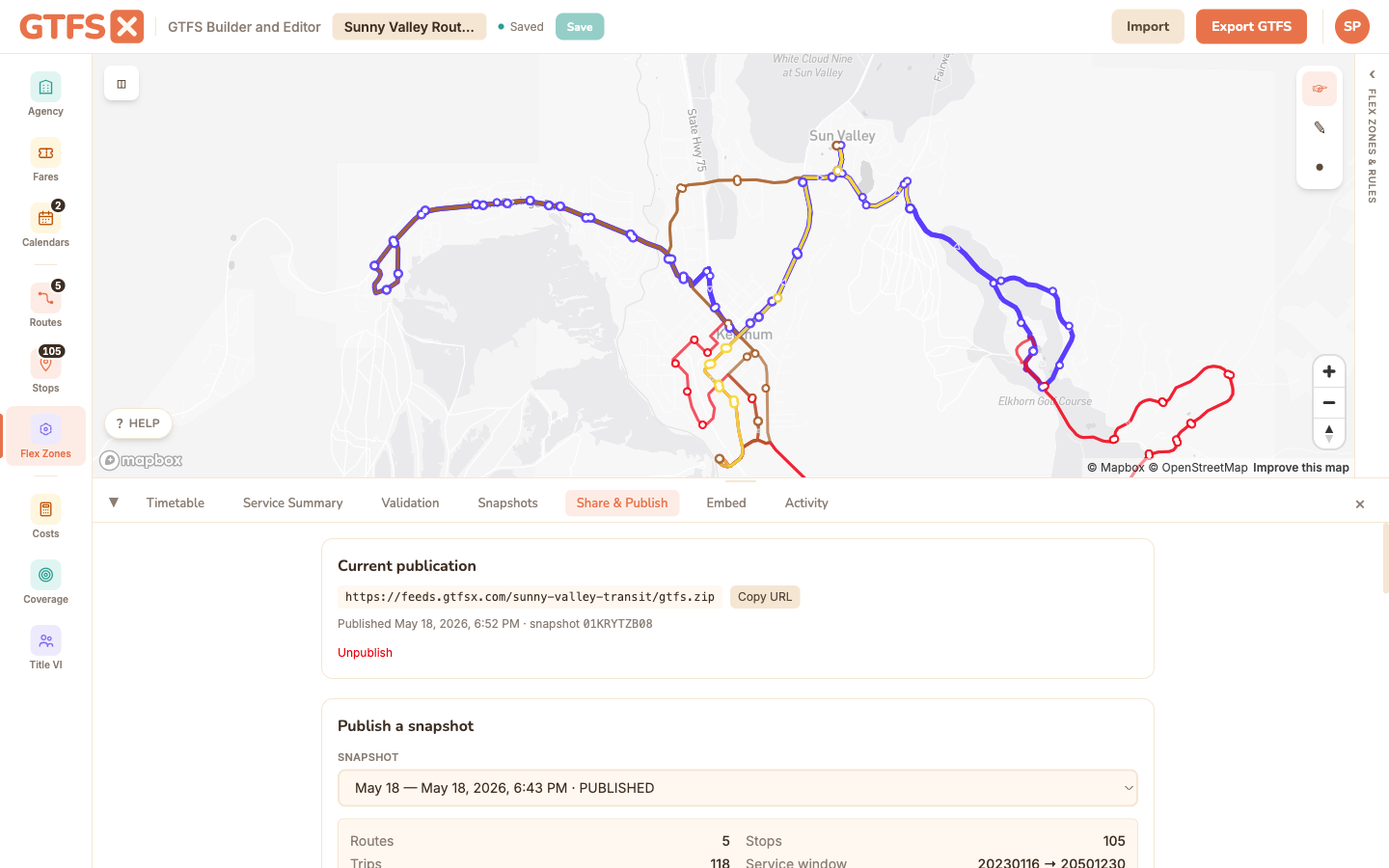
The current-publication section also gives you a "Copy editor link" button (alongside "Open in editor"). That link opens the published feed straight in the GTFS·X editor — no account needed — so a colleague can review or tweak the live feed in one click. It's the same share pattern as a draft review link, but it tracks the canonical published version.
How to publish a feed
Open the feed in the editor and click Share & Publish in the footer (next to Timetable / Service Summary / Validation). The publish flow needs a signed-in account on the Pro or Agency plan — anonymous drafts can be exported as ZIP but not hosted.
- Pick a slug. The default is derived from the feed name (e.g. "Sunny Valley Transit" →
sunny-valley-transit). You can edit it before the first publish: lowercase letters, digits, and hyphens, up to 63 characters, must start with a letter or digit. The slug is the part of the URL that doesn't change between updates, so pick something a regulator wouldn't be embarrassed by. - Confirm what's included. Publishing snapshots the current state of the project: every file the editor would produce on Export GTFS goes into the published ZIP. Validation errors block publishing; warnings don't.
- Click Publish. Within a few seconds the canonical URL serves the new ZIP. Re-publishing later replaces the served ZIP atomically; consumers hitting the URL never see a half-written file.
Updating a published feed
There's no separate "update" action: when you click Publish on a feed that already has a canonical slug, the new snapshot replaces the old one at the same URL. Cache headers tell consumers the feed is fresh for one hour and revalidate after that, so most ingestors will pick up your change within a day even if they don't poll aggressively. Trip planners that pull on their own cadence (Google Maps, Apple Maps) will follow their own schedule.
The previous snapshot stays in storage (the editor's Snapshots tab is where you can browse and roll back), but only the latest snapshot is served at the canonical URL. There's no public history of past versions.
Scheduling a publish for later
Sometimes a change should go live at a specific time — a service change that starts on the first of the month, an overnight cutover, or a new feed that shouldn't appear until the route opens. Rather than clicking Publish at that exact moment, schedule it.
In Share & Publish, pick the snapshot, switch the publish control from Publish now to Schedule for later, and choose a date and time (shown in your browser's local time zone). GTFS·X renders that snapshot's feed when you schedule and stores it, so the publish runs on its own — you don't need to keep the editor open or even be online when the time arrives.
- It fires within about 15 minutes of the time you pick. A background job checks every quarter-hour, so "2:00 AM" means "at the first check at or after 2:00 AM," not to the second.
- One pending schedule per feed. Scheduling again replaces the previous one, and Cancel clears it. The pending schedule and its Cancel button appear in the Share & Publish tab.
- Same gate as publishing now. Validation errors block scheduling just as they block an immediate publish, and it's a paid feature (Pro or Agency).
- Failures surface, they don't publish silently. If the publish can't run when the time comes — for example the plan was downgraded in the meantime — the schedule is marked failed with the reason shown in the panel, and the currently-published feed is left untouched.
Draft preview links
Before publishing a change to riders, you'll often want a stakeholder to look at it — a board member, an agency director, a partner operator. Draft preview links solve that without exposing your work-in-progress at the canonical URL.
From the same Share & Publish tab, generate a draft link. You get back an unlisted URL like https://feeds.gtfsx.com/<slug>/draft/<token>.zip that serves the current working snapshot without overwriting the published version. Defaults to expiring in 30 days (configurable up to one year), and you can revoke a link before it expires from the same tab.
Draft URLs are marked X-Robots-Tag: noindex and aren't listed anywhere, but they're not authenticated — anyone with the link can fetch the ZIP. Treat them like an unlisted YouTube video: fine for "share with a few people," not fine for confidential data.
What's not included
Publishing gives you the URL. Getting that URL into the trip planners and catalogs that riders actually use is still on you. The agency-side submissions GTFS·X does not do for you:
- Google Maps (Transit Partners). Apply at transitpartners.google.com. Google requires a stable feed URL (which is what publishing gives you) plus an agency contact and ToS acceptance. Approval takes weeks.
- Apple Maps. Submit through Maps Connect. Similar shape to Google: stable URL plus agency contact.
- The Mobility Database. database.mobilitydata.org — community catalog used by OpenTripPlanner deployments, Transit app, researchers, and basically anyone who isn't Google or Apple. Submission is a short form.
- NTD P-50 form. If your agency reports to the National Transit Database, your feed URL goes on the NTD P-50 form during the reporting cycle.
You only have to do each of these once. After that the catalogs poll your URL on their own.
Tier limits and pricing
Hosted publishing is part of the Pro and Agency plans:
- Free — no published feeds. You can still export a GTFS ZIP and host it yourself; the editor doesn't care where the feed lives.
- Pro ($49/mo) — one published feed per account, plus the mini-site and embeds tied to that feed.
- Agency ($299/mo) — unlimited published feeds, useful if you operate multiple services under one administrative roof (a county transit authority running a fixed-route system and a separate microtransit service, for example) or manage feeds for several client agencies.
- Enterprise — uncapped, with custom seat and feed limits; pricing on application.
See pricing for the full feature comparison.
Edge cases and gotchas
- Slugs are not custom domains. Everything serves from
feeds.gtfsx.com. CNAME-ing your own domain to a published feed isn't supported. The slug underfeeds.gtfsx.com/is the canonical URL. - Slug changes break inbound links. You can change a slug after first publish (the URL is mutable in the same way a project name is mutable), but the old slug stops serving the moment you change it. If a catalog has already ingested the old URL, you'll need to re-submit. Pick a good slug the first time.
- Reserved slugs. A handful of paths are reserved for embed and metadata URLs (
/embed/,/draft/,/gtfs.zip,/feed_info.json). You can't use those as a project slug. - No version pinning. The canonical URL always serves the latest published snapshot. If a downstream consumer needs to lock to a specific version, give them a draft preview link instead — that URL is tied to a specific snapshot and won't change when you re-publish.
See also
- Rider mini-site — what the rider-facing landing page shows.
- Embed widgets — putting the schedule and map on your agency's website.
- Accounts and cloud sync — how saving and publishing relate.
- Validation — what blocks a publish.
- State DOTs and statewide GTFS programs — running hosted publishing across 5311 sub-recipients.