
Import & export
GTFS·X reads and writes standards-compliant GTFS ZIPs. Import an existing feed to edit it; export to produce a ZIP you can host or hand to a regulator. Round-trip preserves the data you imported — non-standard columns and files survive the cycle and reappear on export.
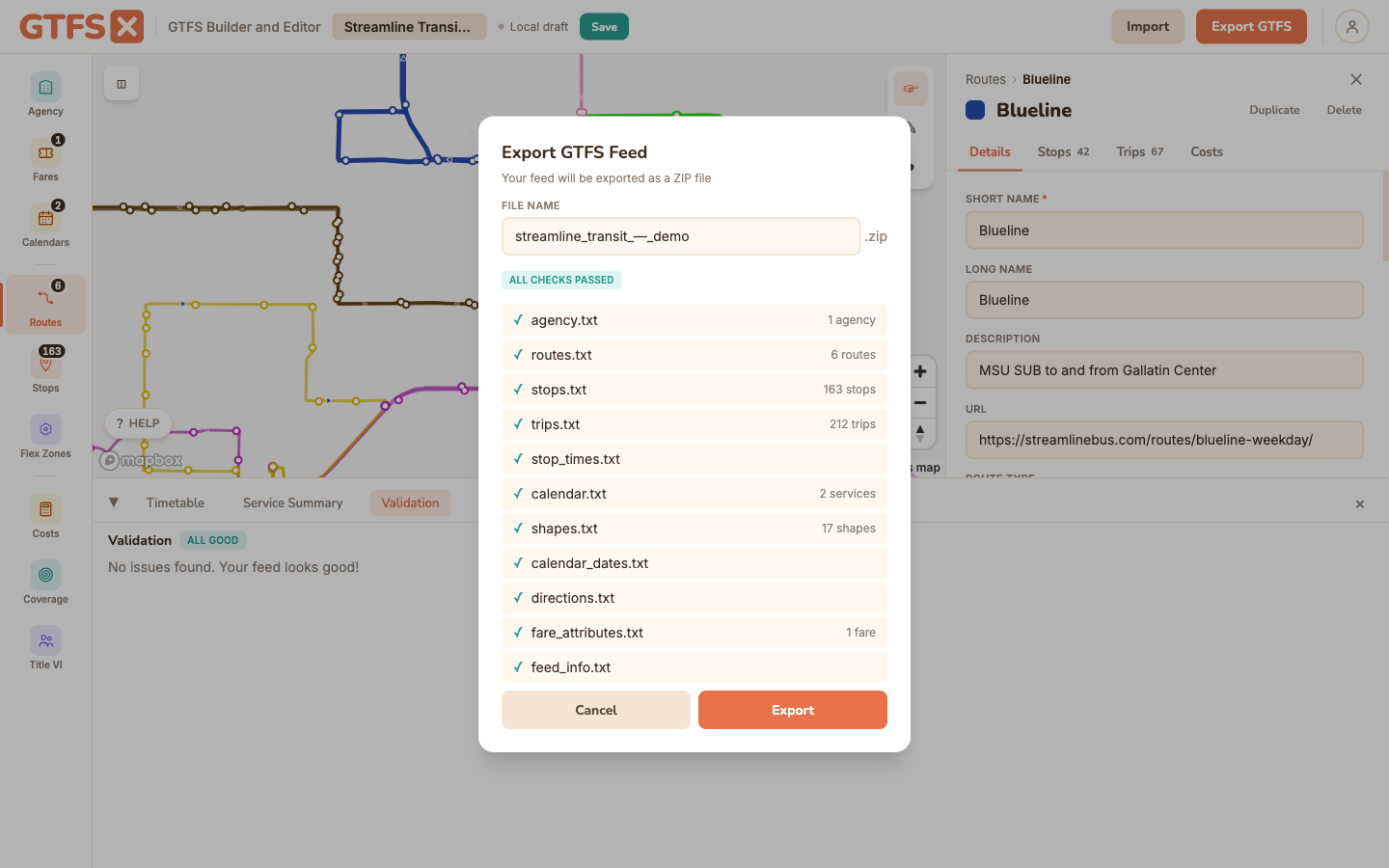
Export
Click Export GTFS in the top bar. The editor validates first; if any errors are present, export blocks until you fix them (warnings don't block — see Validation). On success you get a ZIP file containing:
- Every required GTFS file (
agency.txt,stops.txt,routes.txt,trips.txt,stop_times.txt,calendar.txt). - Every optional file that has data (
calendar_dates.txt,shapes.txt,fare_attributes.txt,fare_rules.txt,transfers.txt,feed_info.txt,frequencies.txtif you used the frequency editor). - Empty optional files are not exported (no zero-row
fare_rules.txtin your ZIP). - GTFS-Flex files where applicable (
locations.geojson,booking_rules.txt,location_groups.txt,location_group_stops.txt). - GTFS-Fares v2 files where present in the imported feed (round-trip preservation — see Fares).
feed_info.txtalways — synthesized from agency data if you didn't fill it in explicitly.
The ZIP is named after the project slug, with the export date appended (sunny-valley-transit-20260518.zip). Drop it on a static host, hand it to Google Transit Partners, or use the editor's hosted publishing to serve it from a stable URL.
Import
Click Import in the top bar, select a ZIP. The editor parses every supported file and surfaces an import summary:
- Counts — agencies, routes, stops, trips, stop_times, shapes, calendars, fares, flex zones, transfers.
- Warnings — non-standard columns preserved, files the editor doesn't author but round-trips, unknown route types, anything in the ZIP that's outside the spec.
After import, the editor loads the feed and you can edit it. Subsequent export produces a ZIP that's structurally identical for the parts the editor manages, with the non-managed files preserved verbatim.
Import individual routes from another of your feeds
You don't have to import a whole feed. With a project already open, you can pull a few routes (with their stops, shapes, trips, and service calendars) from any of your other GTFS·X feeds into the current one. This is the fast way to reuse a route you've already built.
- Open the feed you want to add the routes to (your current project).
- Click Import in the top bar. The dialog title reads Import GTFS feed or routes when a project is loaded.
- Switch to the Routes from my feeds tab (available when you're signed in), then pick one of your feeds (published or draft).
- Choose Import selected routes, tick the routes you want, and click Import N routes.
The selected routes merge into your open project. IDs are automatically prefixed if they would collide; stops are matched to your existing stops by name and location where they line up; and a service calendar is reused when its weekly day-pattern matches one you already have (for example an imported Mon–Fri service folds into your existing Weekdays). Your other feed is never modified, and the whole import is one undoable step.
To import an entire feed instead, use Replace project (or import from a ZIP, URL, or the public catalog on the other tabs).
Round-trip behavior
The principle: nothing that came in goes out missing or mangled. Specifically:
- Non-standard columns on GTFS files (e.g. an agency that uses a custom
route_text_colorvariant) are preserved at the row level. Edits in the editor write the standard columns; non-standard ones carry through unchanged. - Files outside the spec that the editor doesn't author (extended attribution files, agency-specific extensions) are preserved verbatim. They reappear in the export ZIP at byte-equivalent content.
- GTFS-Fares v2 is fully round-tripped — every v2 file imported reappears on export, even though there's no editor UI for authoring v2 today.
- directions.txt,
frequencies.txt,pathways.txt— supported on import; partially supported in the editor; preserved on export.
For agencies running automated quality checks, the round-trip behavior means the editor can sit in your pipeline without changing your feed's structure — only the parts you edit are touched.
Limits
- 100 MB import size. The browser-side import handles up to a 100 MB ZIP. Larger feeds (transit agencies the size of NYCT, MBTA) exceed this; those agencies typically have their own engineering pipelines and aren't the editor's target audience anyway.
- ZIP only. Import expects a ZIP archive. Raw text files in a folder don't import directly; zip them first.
- UTF-8 expected. Files in non-UTF-8 encodings (Windows-1252, ISO-8859-1) won't parse cleanly. Convert to UTF-8 before importing — the canonical GTFS spec requires UTF-8 anyway.
Edge cases and gotchas
- Importing replaces the current project. Edits you haven't saved get overwritten. The editor prompts before replacing; if you want to keep the current project, save it as a snapshot first or sign in and save to the cloud.
- BOM at the start of CSV files. Some Windows-authored feeds have a BOM that confuses parsers. The editor strips it; the canonical validator does too. Other consumers may not.
- shape_dist_traveled is recomputed on export. The editor uses geodesic length from the shape geometry on every export, even if the imported value was different. This is the right behavior for consistency, but agencies with hand-tuned distances will see the values change.
- Empty optional files trip up some validators. The editor's "don't export empty optional files" behavior is correct per spec but occasionally surprises consumers who expect to see a
fare_rules.txtpresent-but-empty. If you need an empty file to satisfy a downstream check, add a stub fare to keep it populated.
See also
- Validation — runs before every export; blocks on errors.
- Hosted publishing — serve the exported ZIP from a stable URL.
- Deep-link integration — load a feed into the editor from a URL.