
Organizations & team workspaces Agency
An organization is a shared workspace for a team. Feeds owned by the org are visible to every member, with per-member roles controlling who can edit and publish. It's built for agencies with more than one person touching the feed — and for the consultants who work across several client agencies at once.
Personal vs. organization workspaces
Every account starts with a personal workspace — feeds only you can see. An organization is a second kind of workspace whose feeds belong to the team, not to an individual, so they survive staff turnover and are visible to everyone you invite. You switch between your personal feeds and any org you belong to from the workspace switcher in the account menu (top-right); the My Feeds page always shows the workspace you're currently in.
Organizations are an Agency-plan feature. On Free or Pro you'll be prompted to upgrade rather than creating an empty org.
Creating an organization
- Open the account menu (your avatar, top-right) and choose + Create organization….
- Give it a name and a URL slug (the slug becomes
/orgs/<slug>). You're the owner. - Switch into it from the same menu, then create or import feeds as usual — they'll be owned by the org.
Members and roles
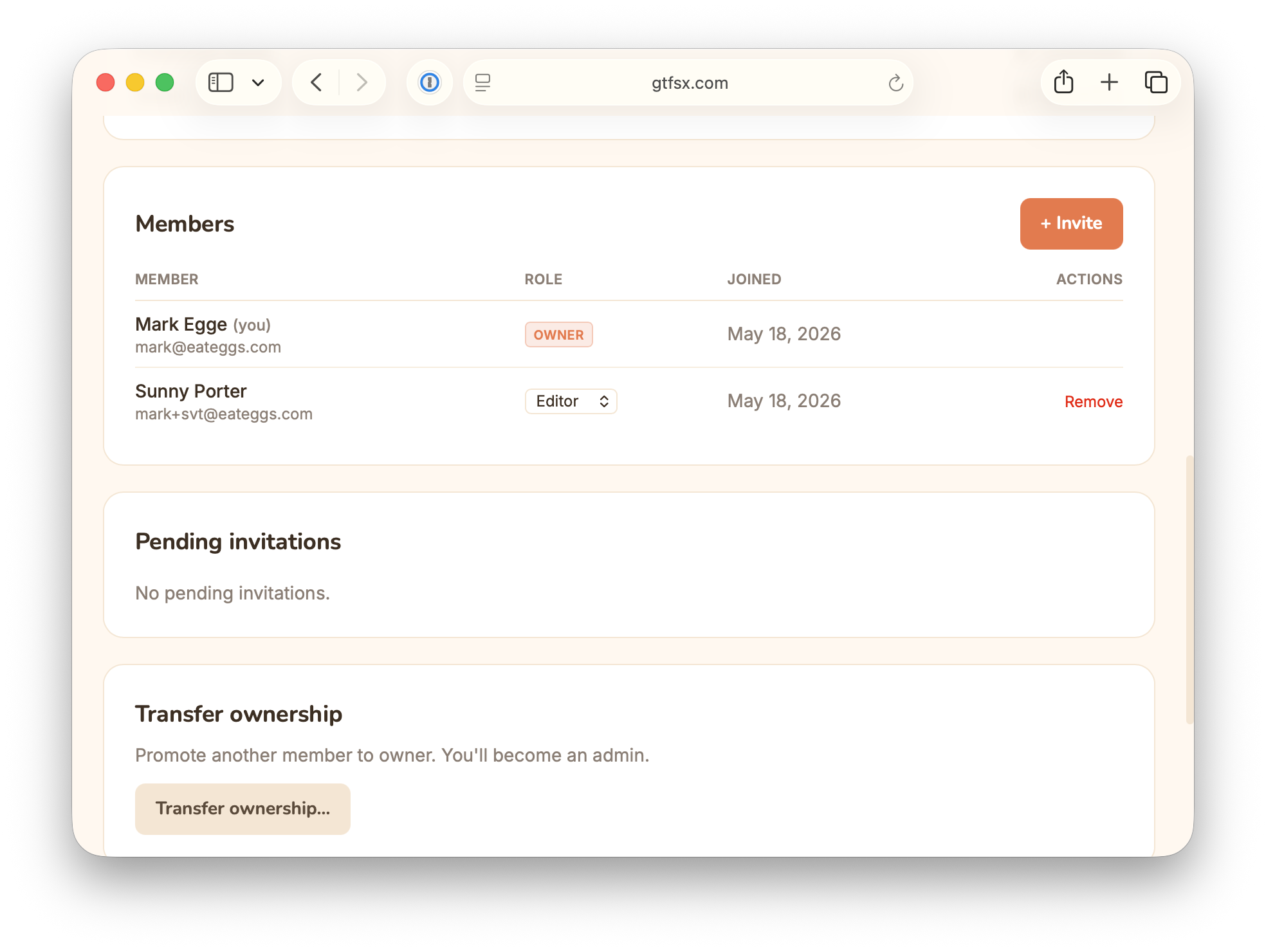
Invite teammates from Organization settings (account menu → Organization settings & billing, or visit /orgs/<slug>) with the + Invite button. Each member carries one role:
| Role | Can do |
|---|---|
| Owner | Everything, including billing, deleting the org, and transferring ownership. (There's always at least one owner.) |
| Admin | Manage members and roles, edit and publish feeds, manage branding — everything except billing/ownership-level actions. |
| Editor | Create, edit, and publish the org's feeds. No member management. |
| Viewer | Read-only access to the org's feeds. |
Change a member's role inline from the role dropdown in the Members table; Remove takes someone off the roster. Outstanding invites appear under Pending invitations until accepted.
How invitations work
Invitations are email-based. The invitee gets a link; if they don't have an account yet they sign up (the invite proves they own the email, so they're activated immediately and skip the verification round-trip), then land in the org. One person can belong to many organizations at once — the core consultant scenario: work inside each client's org without each client paying for your seat.
Transfer & cross-workspace moves
- Transfer ownership — promote another member to owner from the org settings page; you step back to admin. Last-owner protection prevents orphaning an org.
- Move a feed between workspaces — from My Feeds, a feed's kebab menu → Move to… lets you move it between your personal workspace and any org where you're an editor or above. A published feed keeps its URL after the move — the canonical slug follows the feed.
- Bring anonymous work in — feeds you built signed-out (in the browser) can be uploaded to your account on first sign-in, then moved into an org.
Branding & plan
The organization settings page also hosts Branding — upload an org logo (PNG, JPEG, WebP, or SVG, up to 1 MB) that renders on your published feed pages: the rider mini-site landing, and the per-route, per-stop, and system-map embeds. Plan & billing shows the org's subscription (org-owned feeds are gated by the org's plan, not your personal one), seat count, and workspace usage. See embed widgets and rider mini-site for where branding appears, and the pricing page for plan details.
See also
- Accounts and cloud sync — personal accounts, saving, and tier limits.
- Hosted publishing — publishing org-owned feeds to a stable URL.
- Rider mini-site — where your org logo and brand color appear.
- Pricing — the Agency plan that unlocks organizations.