
Stops
With a route selected, click along the route line to drop stops. By default each stop snaps to the nearest point on the route and renders offset to the right side of the line — mimicking the curbside convention riders actually experience. Place an off-route stop (park-and-ride, transfer center, off-street terminal) by toggling freehand mode.
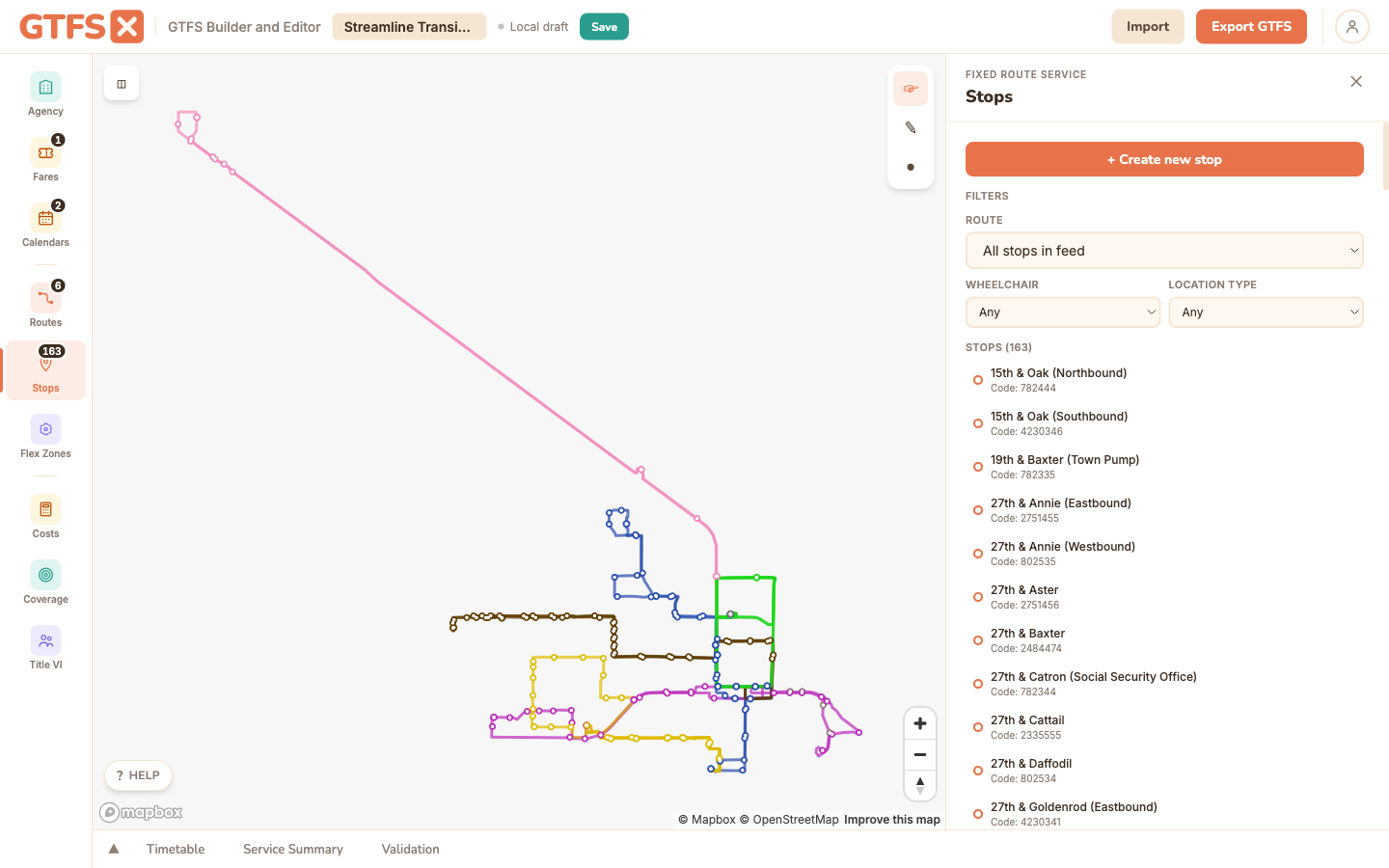
Snap-to-route placement
Open the Routes panel, click a route, and click Add stops. Then click along the route on the map. Each click drops a stop that snaps to the nearest point on the route line and renders offset to the right side (the curbside convention for North American right-of-the-road traffic). The snap means stops always sit on the route geometry — you don't have to worry about whether your click was perfectly on the line.
Stops are added in click order; they're given sequential stop_sequence values when the trip is constructed. Reorder them later by dragging the stop list in the sidebar — useful when you realize the route runs in the opposite direction from how you placed the stops.
Freehand stop placement
Some stops aren't on a route line — park-and-rides served off the main alignment, transfer centers off-street, the end-of-line at a terminal. Toggle Freehand in the stop placement toolbar and click anywhere. The stop drops at that exact lat/lon with no snap.
Freehand stops can still be assigned to a route — the editor maintains the route ↔ stop association through route_stops records — they just don't sit on the route's polyline. Trip planners handle this fine; the polyline is for display, the stop locations are what matter for boarding.
Duplicate detection
If you click near an existing stop (within ~30 m), the editor prompts: "There's already a stop here, reuse it?" Accept the prompt — a stop served by multiple routes should be a single record in stops.txt, not several. Trip planners use stop identity for transfer routing; duplicating stops breaks that.
The typical pattern: when adding stops to a second route that shares stops with the first, click close to the existing stops to get the reuse prompt for each. If you accidentally end up with two stops at the same intersection, use the Stops panel to find both, then delete the duplicate (the editor will warn you if any trips reference the one you're deleting and lets you reassign first).
Stop attributes
Click a stop in the sidebar list to edit its properties:
stop_name— the public-facing name riders see ("Main & 5th", "Downtown Transit Center"). Keep it short and direction-agnostic; "Main & 5th NB" for direction is fine but redundant with the direction picker in most apps.stop_code— the public stop ID a rider would tap into a "next departures" text-message service or look up on a sign. Often a 4–5 digit number. Optional but useful for paratransit booking and rider-facing tools.stop_desc— longer description. Rarely shown; skip unless the stop has a non-obvious location ("on the west side of the depot building").wheelchair_boarding— 0 (unknown), 1 (accessible), 2 (not accessible). Strongly recommended — trip planners use this to filter trips for riders requesting an accessible journey.location_type— what the record represents: a stop/platform (the default), a station, an entrance/exit, a generic node, or a boarding area. Set it from the Location type dropdown. Only relevant when you're modeling a multi-level station.parent_station— links a platform-level stop to its parent station (subway / rail systems mostly). The Parent station dropdown lists stops whose location type is Station; create the station record first, then point its platforms and entrances at it. See Stations, levels & pathways.level_id— which floor of a station the stop sits on. Pick it from the Level dropdown (disabled until you define levels in the Stations panel). Used together with pathways so trip planners can route riders between platforms.zone_id— fare zone the stop belongs to. Set it here (the Fare Zone ID field), or assign many stops at once by drawing a region in the Fares panel's Zones tab.
Reordering stops along a route
Drag stops in the sidebar list to reorder them. The new order updates every trip on that route — stop_sequence is recomputed. If trips reference different subsets of stops (a short-turn variant that skips downtown), reorder doesn't break those; the editor preserves which stops each trip touches.
Edge cases and gotchas
- One stop, multiple routes. A bus stop served by routes 5 and 12 should be one record in
stops.txtwith both routes' trips visiting it. The duplicate-detection prompt is what keeps this clean. - Wheelchair accessibility default is "unknown", not "yes". Leaving the field at 0 communicates "we haven't verified this stop," which is honest and useful. Only set 1 when the stop has been actually surveyed.
- Stop IDs are immutable from the rider's perspective. Riders memorize
stop_codes for SMS departure lookups; downstream apps cachestop_id. Don't renumber stops between feed updates if you can avoid it. - The curbside offset is a render trick, not a coordinate. The stop's
stop_lat/stop_lonstay on the route centerline; the editor just draws it offset. Trip planners may render it differently.
See also
- Routes & shapes — draw the route before placing stops.
- Timetables & trips — stop times reference the stops you placed here.
- Stations, levels & pathways — group platforms under a station and place stops on a level.
- Fares — zone-based fares assign
zone_idto stops.