
Feature settings
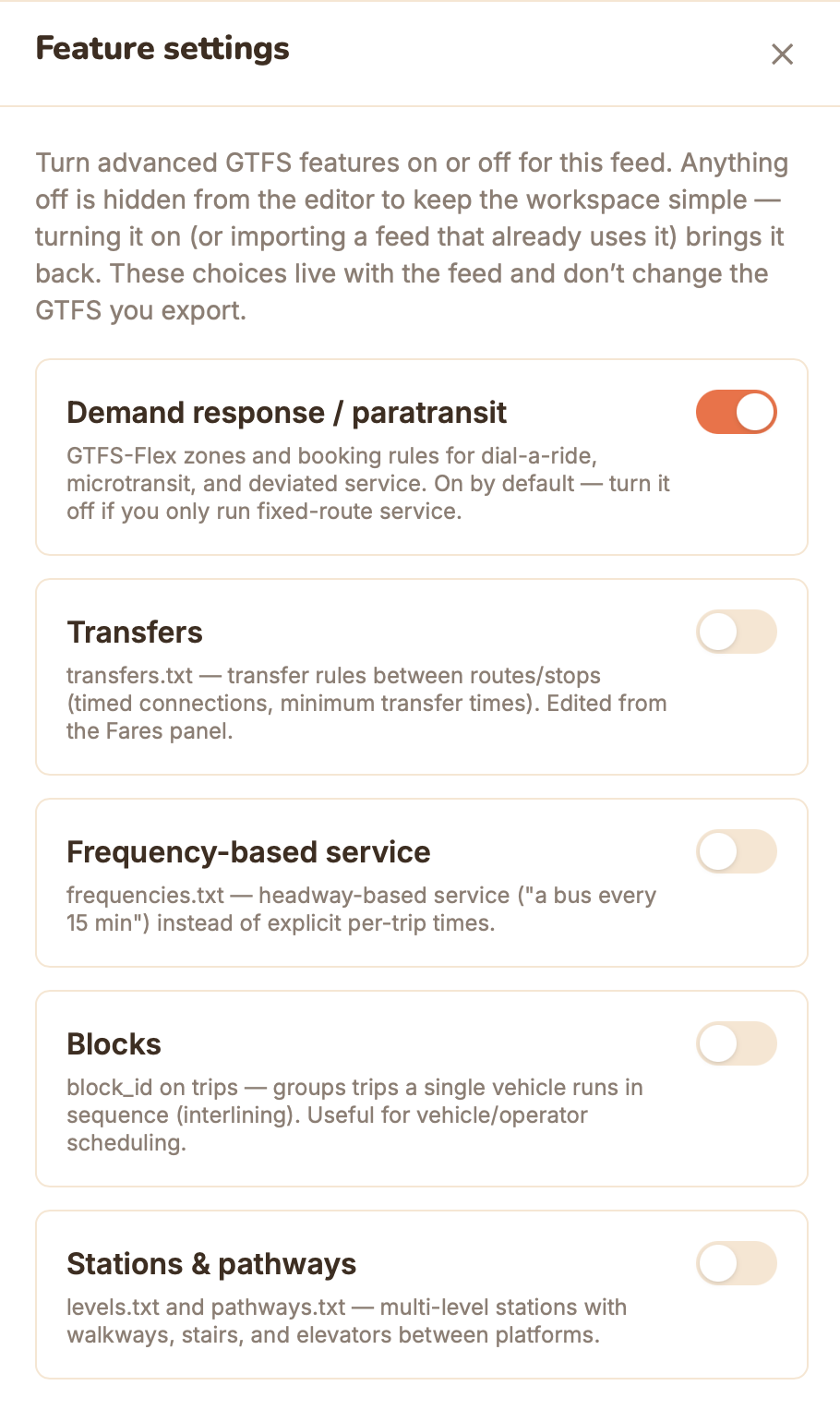
GTFS is a big spec, and most of it is optional. A small agency running a handful of fixed routes never touches transfers, frequency-based service, multi-level stations, or vehicle blocks — so by default GTFS·X keeps those out of the way. Feature settings is a per-feed panel that lets you turn each advanced feature on when you need it and off when you don't, keeping the editor as simple as the feed deserves.
Where to find it
Open the Settings item (the gear) in the left rail of the editor. The panel lists each advanced feature with a short description and a toggle. Your choices are saved with the feed — anonymous feeds remember them locally, and signed-in projects sync them to the cloud alongside your data.
How it works
Each feature can be in one of three states:
- Off (hidden). The feature's panel or controls are removed from the editor. The default for everything except demand-response.
- On (you turned it on). Flip the toggle and the feature's editor surface appears — ready for you to add data even though the feed doesn't use it yet.
- On automatically (the feed already uses it). If you import or build a feed that already contains the feature's data — a
frequencies.txt, ablock_idon some trips, transfer rules — GTFS·X turns the feature on for you. A feature that's actually in use is never silently hidden.
These choices are editor preferences that live with the feed. They don't change the GTFS you export: turning a feature on does not add an empty file to your zip, and turning it off doesn't strip files that still hold data without asking. A file appears in your export only once it has rows.
The features you can toggle
- Demand response / paratransit — GTFS-Flex zones and booking rules for dial-a-ride, microtransit, and deviated fixed-route service. On by default (see below). Reveals the Flex Zones panel. Maps to
locations.geojson,booking_rules.txt,location_groups.txt,location_group_stops.txt. - Transfers — routing rules between stops: timed connections where a vehicle waits, minimum transfer times, connections that aren't possible. Surfaces the Transfers tab inside the Fares panel. Maps to
transfers.txt. - Frequency-based service — headway-based schedules ("a bus every 15 minutes") instead of explicit per-trip departure times. Maps to
frequencies.txt. See Timetables & trips. - Blocks —
block_idon trips, grouping the trips a single vehicle runs in sequence (interlining). Useful for vehicle and operator scheduling. This is a column ontrips.txt, not a separate file. - Stations & pathways — multi-level stations with walkways, stairs, and elevators between platforms. Maps to
levels.txtandpathways.txt. See Stations, levels & pathways.
Why demand-response is on by default
GTFS-Flex is one of the most underused parts of the spec, and a lot of agencies run dial-a-ride or microtransit service they never publish. So unlike the others, Demand response / paratransit is on by default — the Flex Zones panel is right there, inviting you to model that service. If a feed has demand-response on but no flex zones defined, validation adds a gentle nudge suggesting you either add zones or turn the feature off. If you only run fixed-route service, flip it off and the Flex Zones panel disappears along with the nudge.
Turning a feature off
If you turn off a feature that has no data, it just hides — flip it back on any time and nothing is lost. If you turn off a feature that does hold data (you have transfer rules, or flex zones, or a few block_ids), GTFS·X warns you first and tells you exactly what will be deleted, because hiding the editor surface and keeping orphaned data would be worse. Confirm and the data is removed from the feed; cancel and nothing changes.
Notes
- Per feed, not per account. Each feed remembers its own settings. A simple bus feed and a complex multi-modal one can sit side by side with different features showing.
- Import always wins. Importing a feed that uses a feature turns it on regardless of the previous setting — you'll never open a feed and find its real data hidden.
- The export is the source of truth. These toggles shape the editor, not the spec. Whatever data you've entered is what gets exported; whatever you haven't, isn't.
See also
- Flex zones & booking rules — the demand-response feature in depth.
- Transfers, Stations, levels & pathways, Timetables & trips — the panels these toggles reveal.
- Validation — including the demand-response flex nudge.